New Password
Creating a New Password Entry
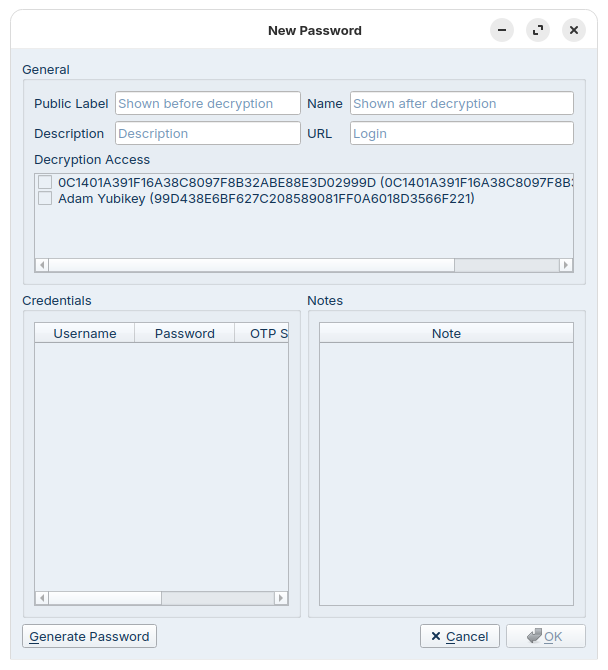
The New Password window is where you securely create and configure a new password entry within the application. This interface ensures that all critical information is captured and encrypted appropriately, while also allowing flexibility for additional metadata and access control.
Mandatory Components
To enable the OK button and successfully save a new password, the following fields must be completed:
- Public Label: This label is visible before decryption and helps identify the entry. Although it is shown without decryption, it is still obfuscated in the database.
- Name: The internal name of the password entry, visible only after decryption.
- Description: A short description of the password entry. This field is encrypted.
- URL: Typically the login URL associated with the password. This field is also encrypted.
- Decryption Access: You must select one or more GPG keys that have been previously configured through the Key List. These keys determine who can decrypt and access the password.
- Credentials: At least one set of credentials must be provided. Each set includes:
- Username
- Password
- OTP Secret
- OTP Length
Optional Components
- Notes: You may add one or more notes to the entry. These are useful for storing additional context or instructions and are optional.
Generate Password
The Generate Password button allows you to create a cryptographically secure password directly within the interface. This is especially useful for generating strong, random passwords without relying on external tools.
Save Conditions
The OK button will remain disabled until all mandatory fields are populated. This ensures that incomplete or insecure entries cannot be saved accidentally.
Screenshot Reference
Below is a screenshot of the New Password window, showing the layout and available fields. Use this visual reference to familiarize yourself with the interface and ensure all required components are properly configured when creating a new entry.